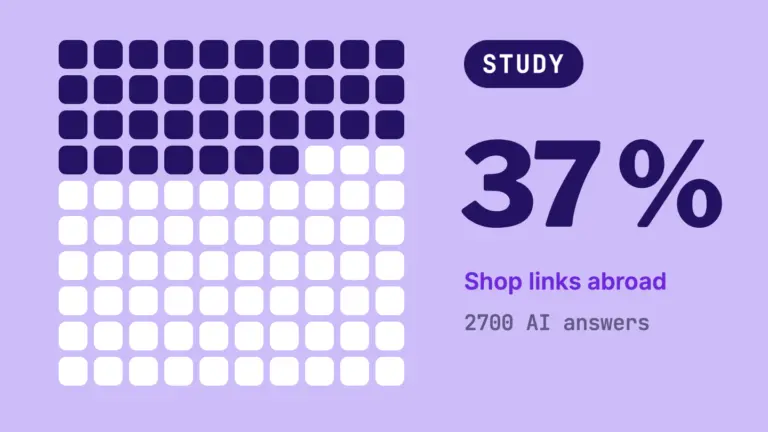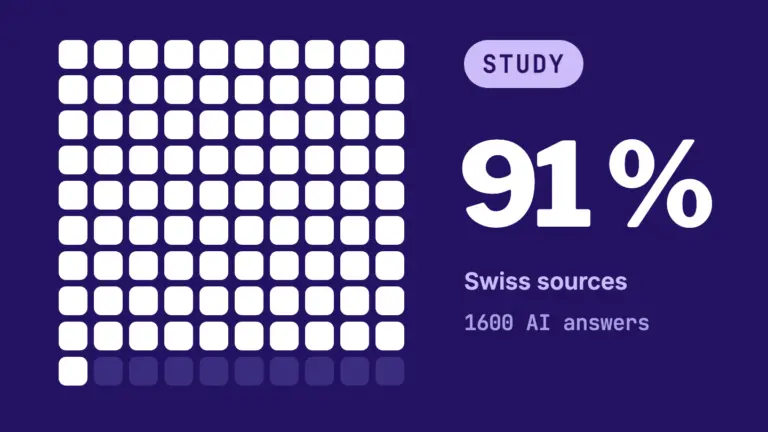
Since 10 November 2026, businesses can claim their listing in ChatGPT. OpenAI calls the offer «Businesses in ChatGPT» and the tool «Business Hub». It is free and available as a beta.
This article is for businesses in Switzerland, Germany and Austria. It explains what the Business Hub does and who can use it today. For businesses with a location, the search in the Business Hub decides: if your location is in the result list, you can claim it.
In RankScan the matching task is called «Claim your business in ChatGPT». RankScan cannot see whether you have claimed your listing. So the task is a check, not a finding.
According to OpenAI, the listing does not guarantee a better placement in ChatGPT. It gives you control over your details and figures on mentions.
- In the Business Hub you claim your listing in ChatGPT, keep your details current and see mentions, website clicks and topics of the last 28 days.
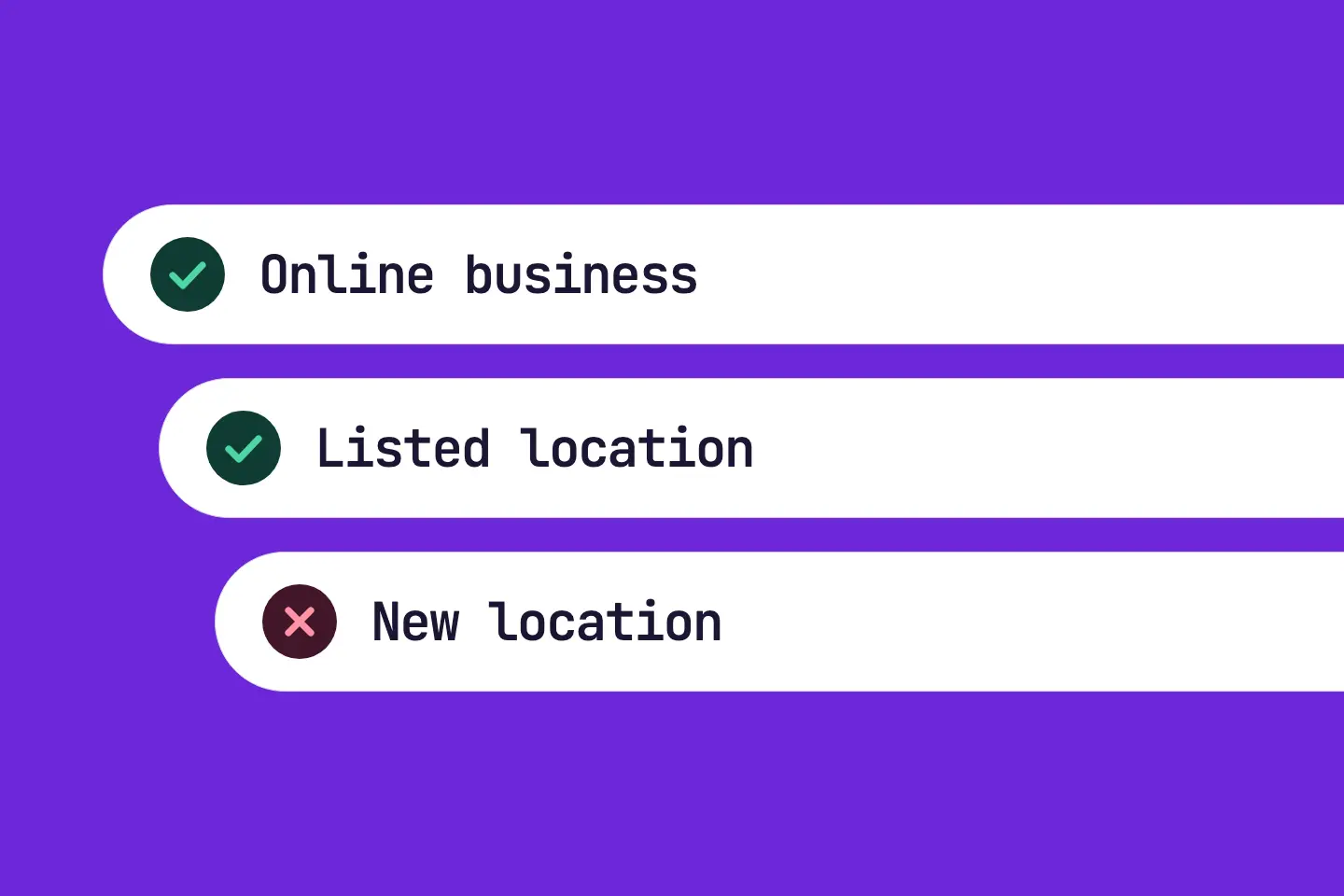
- According to OpenAI, online businesses with a website can claim or create their listing. In our test on 12 Nov 2026, RankScan could be added as a Swiss online business. We proved the connection with a DNS record, and OpenAI approved the claim.
- Businesses with a location such as stores, restaurants or agencies: if the location appears in the result list, you can claim it. Our test on 16 Nov 2026 with a Swiss location shows this. Creating a new location is not possible in DACH yet, only the waitlist.
- According to OpenAI, the Business Agent, a chat of your own business inside ChatGPT, is available in the US only.
- You need a proof of connection (phone, email, DNS or Shopify), then an identity check with the verification service Persona.
- Rating in RankScan: severity low · effort low · work type editorial.
- Check: Mark the task as done and it counts as fixed. RankScan cannot see your listing in ChatGPT.
What the Business Hub does #
You open the Business Hub from the sidebar in ChatGPT or directly at chatgpt.com/business-hub. According to OpenAI it covers three things.
- Keep details current: website, description, category, logo, delivery and return policies, and a cover photo. OpenAI reviews every change before it appears.
- Show products: retailers connect a product feed with price and availability, as a CSV file, a hosted URL or through Shopify.
- Read insights: mentions, website clicks and so-called discovery topics. The topics show in which contexts ChatGPT names your business, without individual conversations.
After the identity check with Persona, your listing shows a blue checkmark in ChatGPT. You need no advertising for this, and no ads account either.
What the listing does not do #
- It does not guarantee a better placement. According to OpenAI, ChatGPT keeps making independent recommendations and comparisons.
- According to OpenAI, advertising does not influence the answers.
- ChatGPT keeps using other sources besides your details. According to OpenAI, it takes time until a change appears in answers.
- You see no individual prompts and no conversations.
- You cannot delete a published profile. Only drafts that are not published yet can be deleted.
What applies in Switzerland and the DACH region #
OpenAI publishes no country list for the Business Hub. The help centre states a rule: claiming works where ChatGPT is available and the required verification is supported. According to OpenAI, eligibility depends on location, industry and verification.
| Feature | Switzerland, Germany, Austria |
|---|---|
| Claim or add an online business | possible, tried in Switzerland |
| Claim a location from the result list | possible, tried in Switzerland |
| Add a new location | not possible today, waitlist in Switzerland |
| Insights | after approval of the claim, in our test already before the Persona check |
| Business Agent | US only, according to OpenAI |
| ChatGPT Ads self-service | available |
An online business here is an online shop, software or a service that customers use through the website. A business with a location has an address that customers visit, such as a store, a restaurant, a practice or an office.
OpenAI's help centre says: local stores and restaurants can claim only existing listings in the US. Our tests showed something else. On 12 Nov 2026 a Swiss business with a location could not be added, only put on a waitlist. On 16 Nov 2026 a Swiss location of our team appeared in the result list, with name and address. We could select this listing, prove the connection by business phone and claim it.
We do not know whether OpenAI has opened this for all locations in DACH. We also do not know whether the rule will stay. So search for your location yourself.
You can enter the description in German. OpenAI does not say whether Persona accepts Swiss IDs and commercial register data. In our test the identity check with Persona passed for a Swiss online business, on the same day as the claim.
What does «Claim your business in ChatGPT» mean? #
Rating in RankScan: severity low · effort low · work type editorial.
RankScan proposes the task as soon as it has counted at least one ChatGPT answer in your property. If ChatGPT already names your brand, the task says in how many answers. The task applies to the whole website, not to single pages.
What RankScan cannot see #
RankScan cannot see the Business Hub. RankScan also cannot tell whether you run an online business or a business with a location.
If you cannot find your location in the Business Hub and cannot add it, ignore the task with the reason «Not relevant for us».
RankScan and OpenAI's insights #
The two figures measure different things:
- OpenAI counts real conversations. For an online business a mention counts only when ChatGPT refers to your website. The brand name alone does not count. For a business with a location, a mention counts when ChatGPT shows a result for your location.
- RankScan asks fixed questions, also counts mentions without a link, and shows your competitors in the same answers.
So the figures cannot be compared directly. Together they show more: OpenAI shows how often real users see you. RankScan shows for which questions a competitor stands ahead of you.
How to claim your business in ChatGPT #
The screenshots come from our test on 16 Nov 2026 with a Swiss location. They show the German An application programming interface (API) is an interface through which software systems communicate and exchange data. It defines how requests are made and answered.Open glossary entry →. We replaced name, address, email, phone number and figures with placeholders. The other results in the list are made up.
Step 1: Choose the account #
Sign in to ChatGPT with the account you will use to manage the listing later. Use a business account that your team keeps access to. You can invite teammates and an agency later.
Step 2: Open the Business Hub and search for your business #
Open chatgpt.com/business-hub and search for your business by name. The result list shows existing listings with address or website.
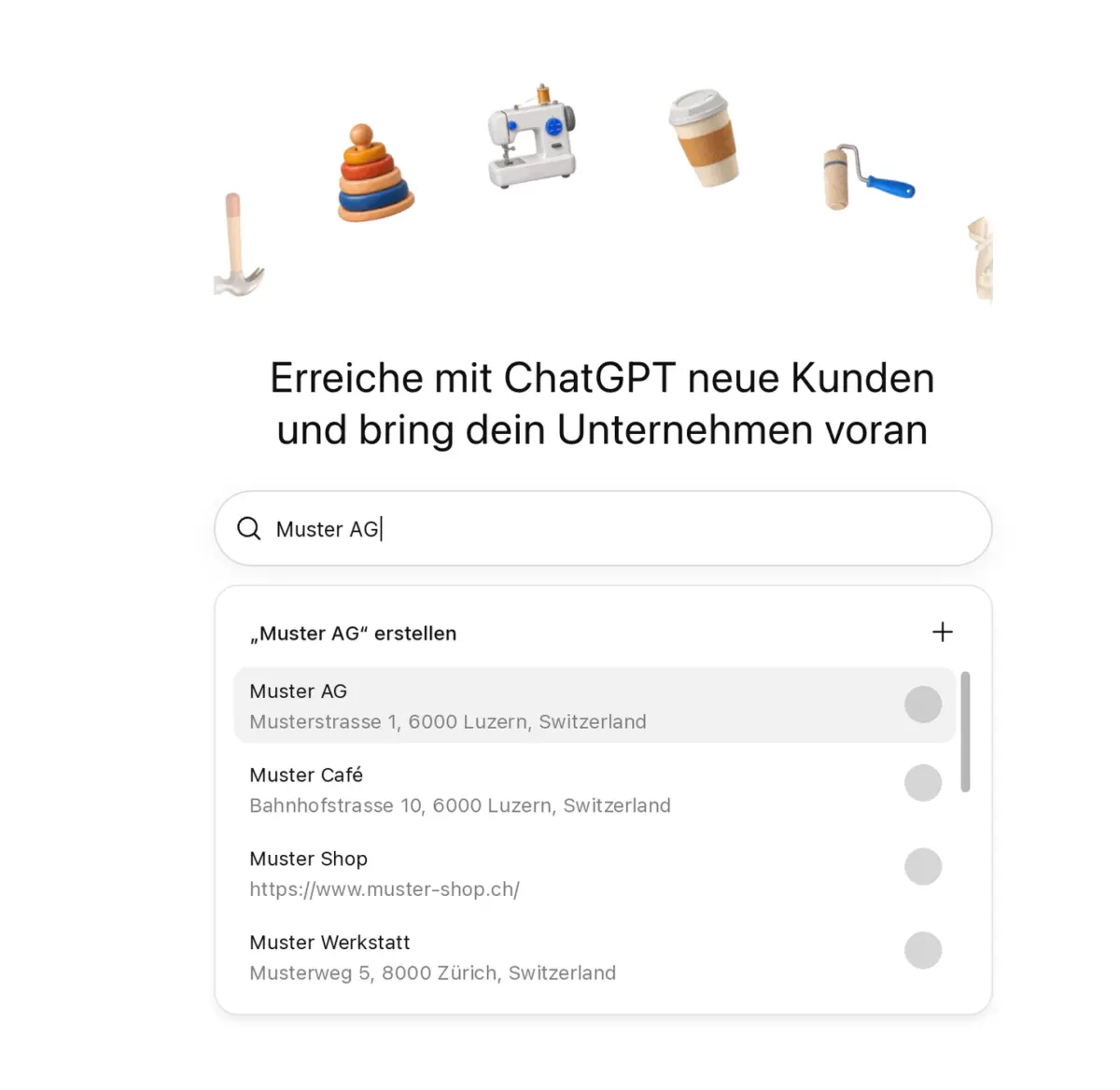
- Listing found: Select the listing. This also applies to stores, restaurants and other locations.
- No listing found: As an online business you can create your business. For a new location in DACH, OpenAI currently offers only the waitlist.
- «Contact support» appears: The listing is locked. Ask support for access.
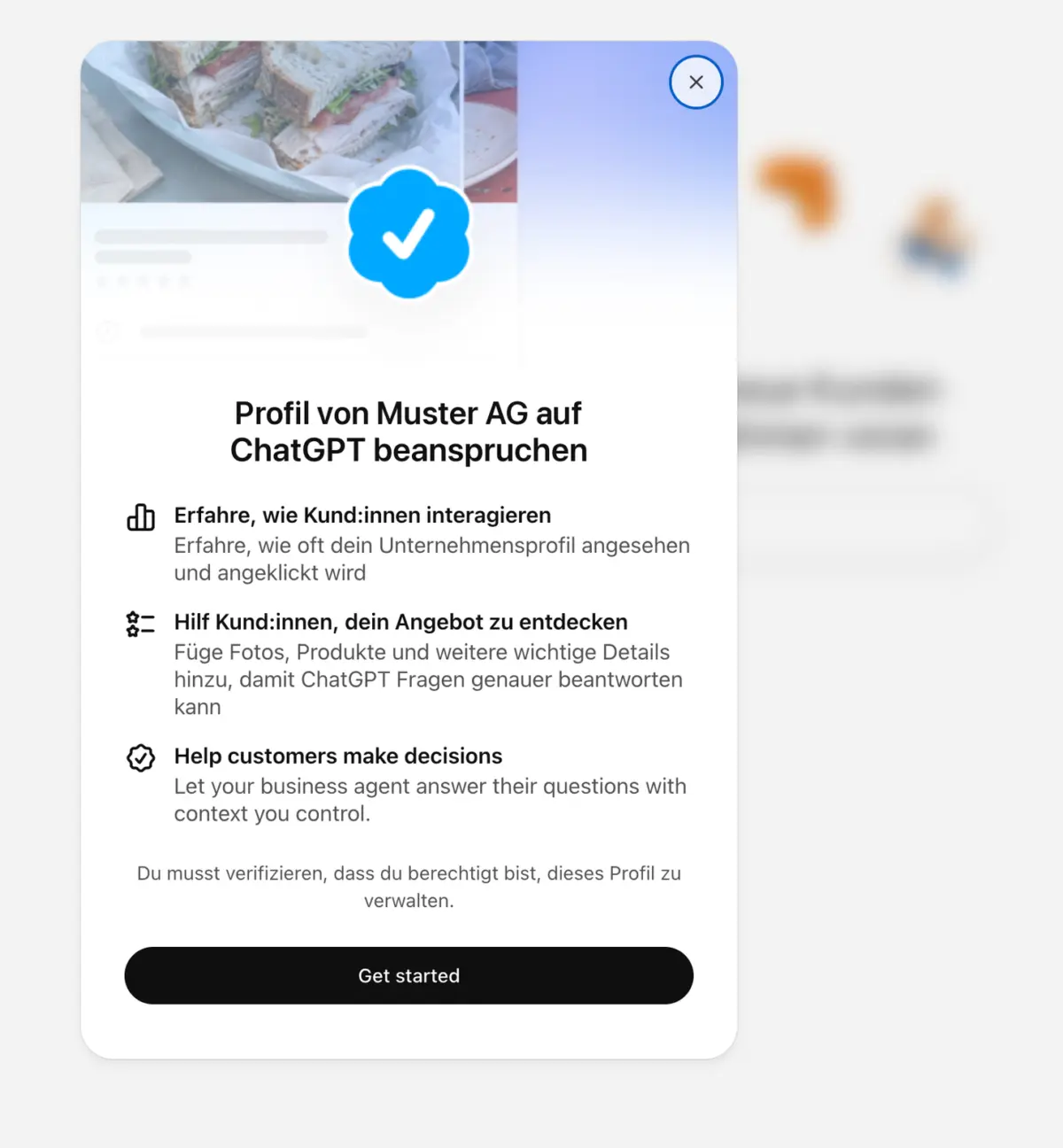
After you select it, ChatGPT shows what the listing offers. Click «Get started».
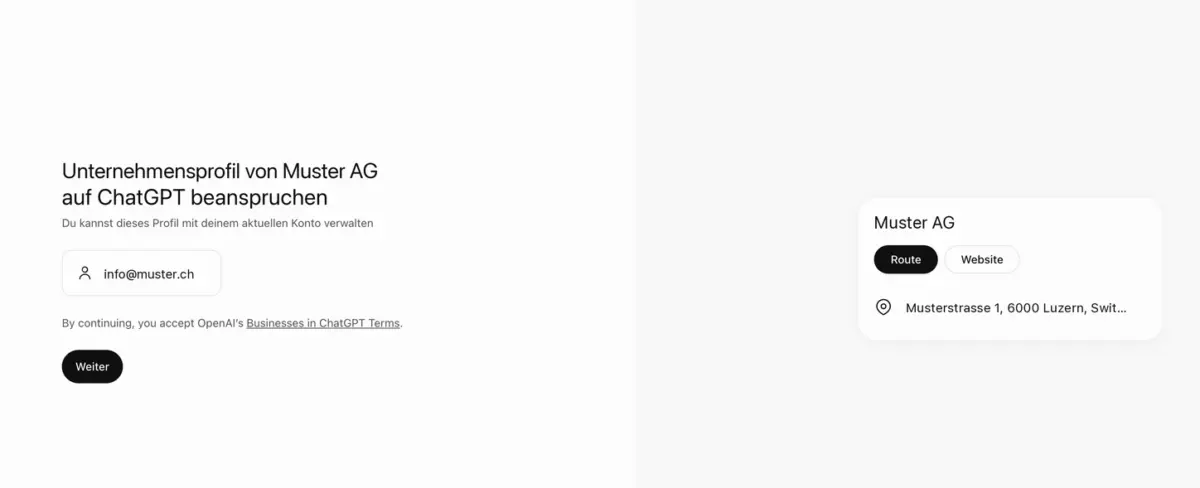
Then confirm the account you will use to manage the listing. By clicking «Continue» you accept OpenAI's Businesses in ChatGPT terms.
If your business has several locations, you claim each one separately. Claiming the main brand does not claim its locations.
Step 3: Prove your connection #
Choose one of the methods offered. Which ones appear depends on the listing. For our location ChatGPT offered business phone and website domain.
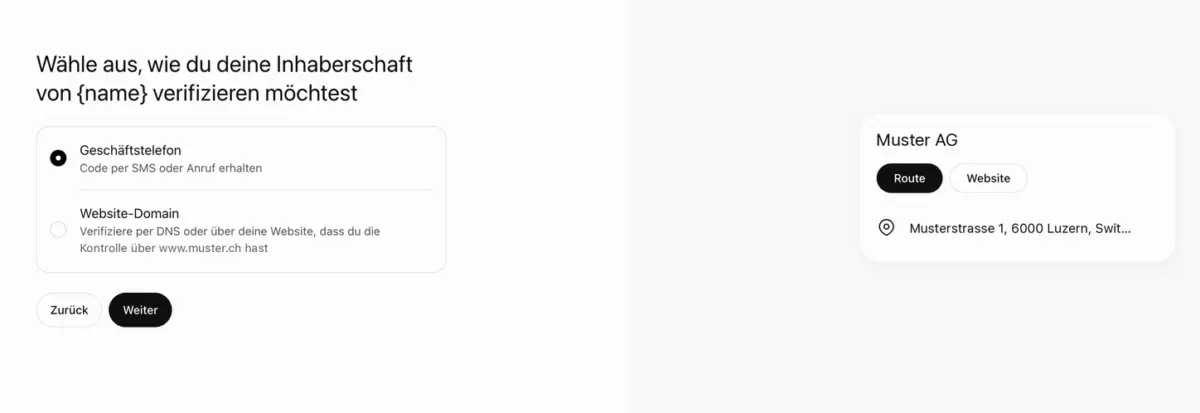
- Business phone: code by text message or automated call to the number in the listing.
- Business email: code to the business email address.
- Website domain: add the TXT record shown to your domain's DNS. If your IT or an agency manages the domain, pass the record on to them.
- Shopify: sign in to your Shopify store.
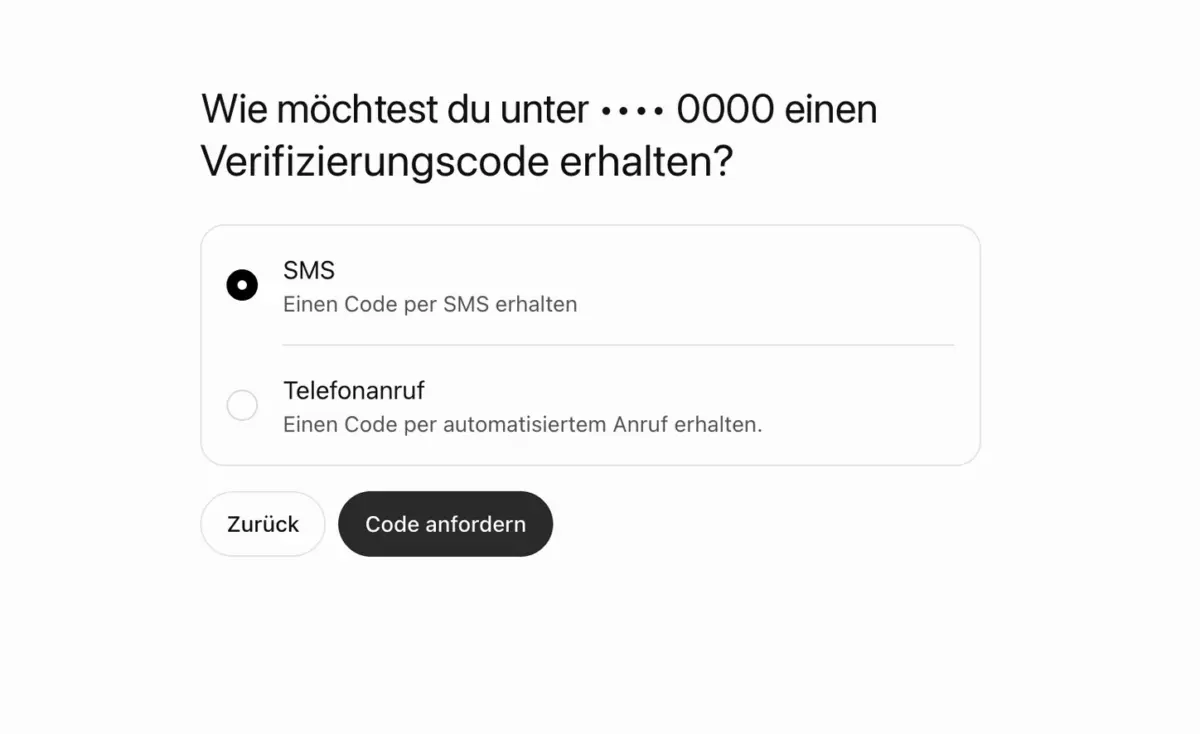
OpenAI then reviews the request. OpenAI approves some requests right away and replies to others by email. You can withdraw the request during the review.
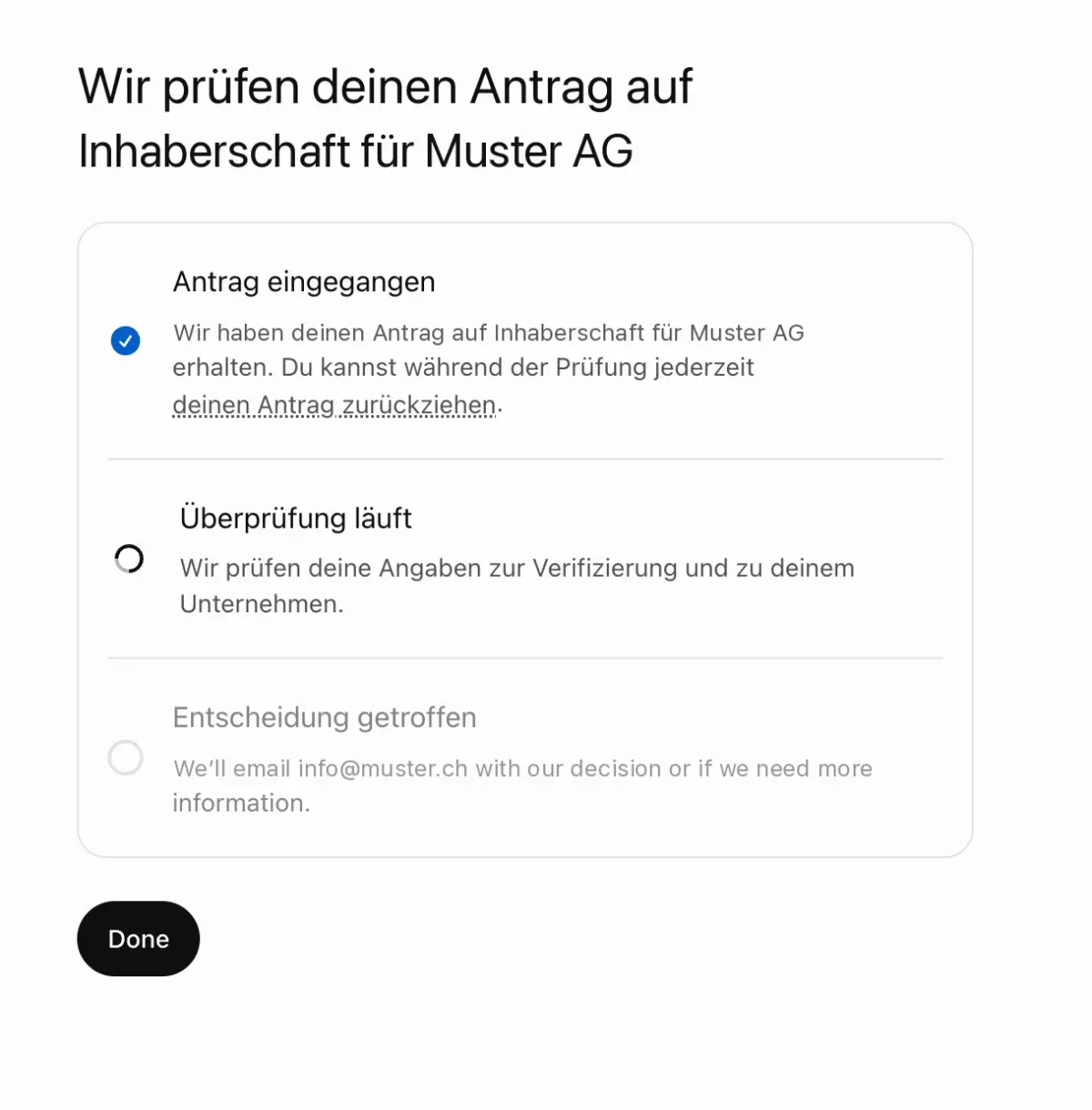
Step 4: Complete the identity check with Persona #
After approval you see the listing in the Business Hub. At the top it says to complete the verification with Persona. Click «Verify». Only then can you publish details and connect a product feed. In our test the dashboard already showed the insights before that.
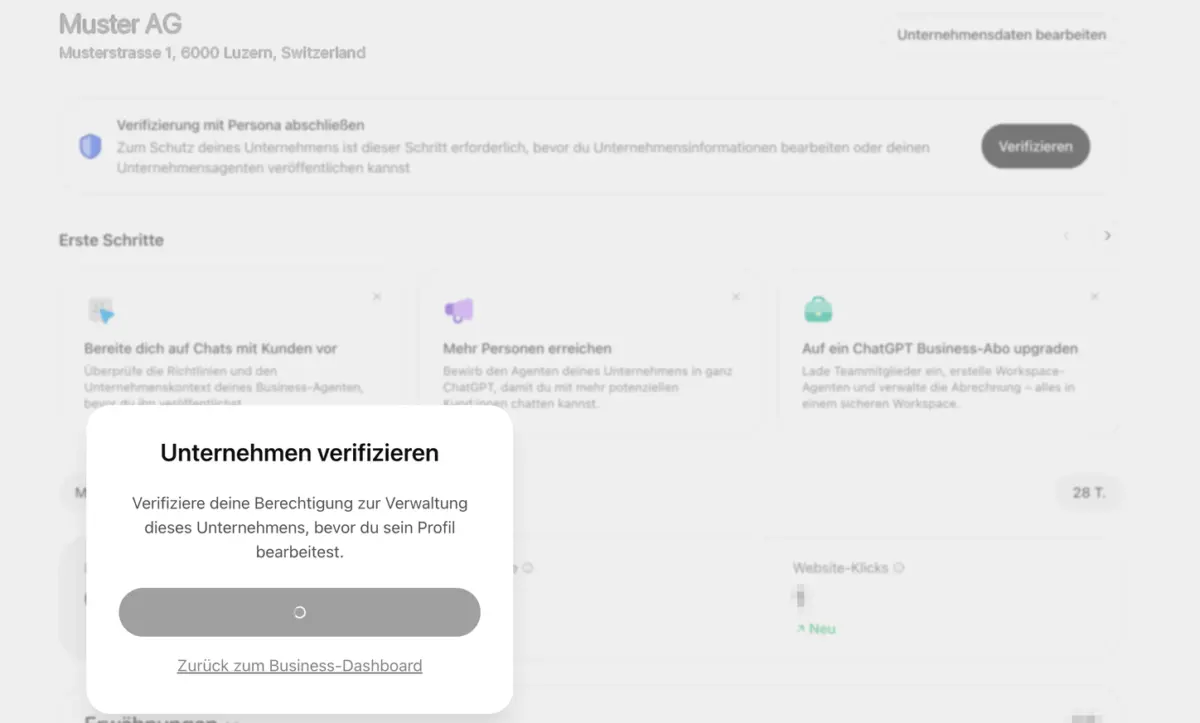
Persona may ask for a government ID, commercial register data and proof that you may represent the business. OpenAI advises that business name, address and register number match your official business records. So check them against the commercial register before you submit.
Step 5: Check your details #
In the Business Hub, check website, description, category and logo. Add delivery and return policies if you sell.
Keep the description factual and the same as on your website. OpenAI reviews every change against the Businesses in ChatGPT policy.
Step 6: Connect a product feed if you sell #
If you sell products, connect your feed. It shows price and availability right in ChatGPT. Shopify stores connect the feed through Shopify, everyone else through a CSV file that follows OpenAI's specification or a hosted URL.
According to OpenAI, a feed does not guarantee that ChatGPT recommends your products.
Step 7: Compare the insights with RankScan #
Read the insights once a month. Compare the discovery topics with the prompts of your topics in RankScan. A topic without a matching prompt is a candidate for a new prompt.
According to OpenAI, a blank value does not mean zero. The reporting threshold may not be reached yet, or data is still being collected.
Step 8: Mark the task as done #
Mark the task as done in RankScan.
Check: Marking it closes the task as fixed. RankScan cannot see your listing in ChatGPT and therefore does not check it again.
Common mistakes #
Mistake 1: Expecting more mentions #
The listing gives you control over your details. According to OpenAI it does not guarantee more recommendations. Whether you are mentioned still depends on your content and on sources about you.
Mistake 2: Claiming with a personal account #
If that person leaves the business, you have to sort out access again. So use an account that belongs to the business and invite more teammates. Do not forward invitation links, each person needs their own invitation.
Mistake 3: Business data at Persona that differs #
OpenAI advises that name, address and register number match your official business records. Check the data before you submit.
Mistake 4: Writing off a location too early #
OpenAI's help centre names only the US for stores and restaurants. In our test a Swiss location from the result list could still be claimed. So search in the Business Hub first, before you ignore the task.
Mistake 5: Treating insights and RankScan as the same #
For online businesses OpenAI counts only references to your website. RankScan also counts mentions without a link. Different figures are normal.
Checklist: claim your business in ChatGPT #
- business account for ChatGPT chosen,
- Business Hub opened and business searched,
- listing selected from the result list or created as an online business, otherwise task ignored with «Not relevant for us»,
- connection proven by phone, email, DNS or Shopify,
- identity check with Persona completed,
- website, description, category and logo checked,
- if you sell: product feed connected,
- insights compared with the prompts in RankScan once a month,
- task marked as done in RankScan.
FAQ About the ChatGPT Business Hub #
Does the listing cost anything?
No. According to OpenAI, claiming is free, and you need no ads account. Advertising is a separate, paid offer.
I run a restaurant in Zurich. Can I add it?
Search for it in the Business Hub. If it appears in the result list, you can claim the listing. This worked in our test with a Swiss location. You cannot add a new restaurant in DACH today, only join the waitlist. Until then, keep your business listings in map services current.
Is this the same as ChatGPT Business?
No. ChatGPT Business is a subscription for teams with a shared workspace. The Business Hub is the free tool for your business listing.
Can my agency manage the listing for me?
Yes. Whoever claimed the listing can invite teammates and an agency in the Business Hub. Each person uses their own ChatGPT account. If the listing was claimed in a workspace, invitees may need to be members of that workspace.
Why does RankScan show the task although I already have the listing?
RankScan cannot see the Business Hub. The task appears because RankScan measures ChatGPT answers for you. Mark it as done and it counts as fixed.
Does the listing raise my AI Visibility?
That is not proven, and OpenAI does not promise it. The listing makes sure ChatGPT has correct details about you and gives you figures on mentions.
Conclusion: control over your details, also for many locations #
With the Business Hub you keep your details in ChatGPT current and see real mentions. Online businesses in Switzerland should submit a request. Businesses with a location search the result list first: if the location is there, the request is worth it for them too. The listing does not guarantee more mentions. Good content and sources about you remain the lever.