You do not implement every measure yourself. Often an agency changes the website or a developer handles the technology. With “Delegate” you send such measures by email to an external person. They open a link and do not need a RankScan account. Every team member can delegate.
How to send an assignment #
Open “Measures” in the menu and choose the “open” filter.
Click “Delegate”. Select the measures to include. “Select all visible” takes every measure in the list. You can also mark a single measure with “Delegate” in its detail card.
A bar appears at the bottom, for example “3 measures to delegate”. Click “Send assignment”.
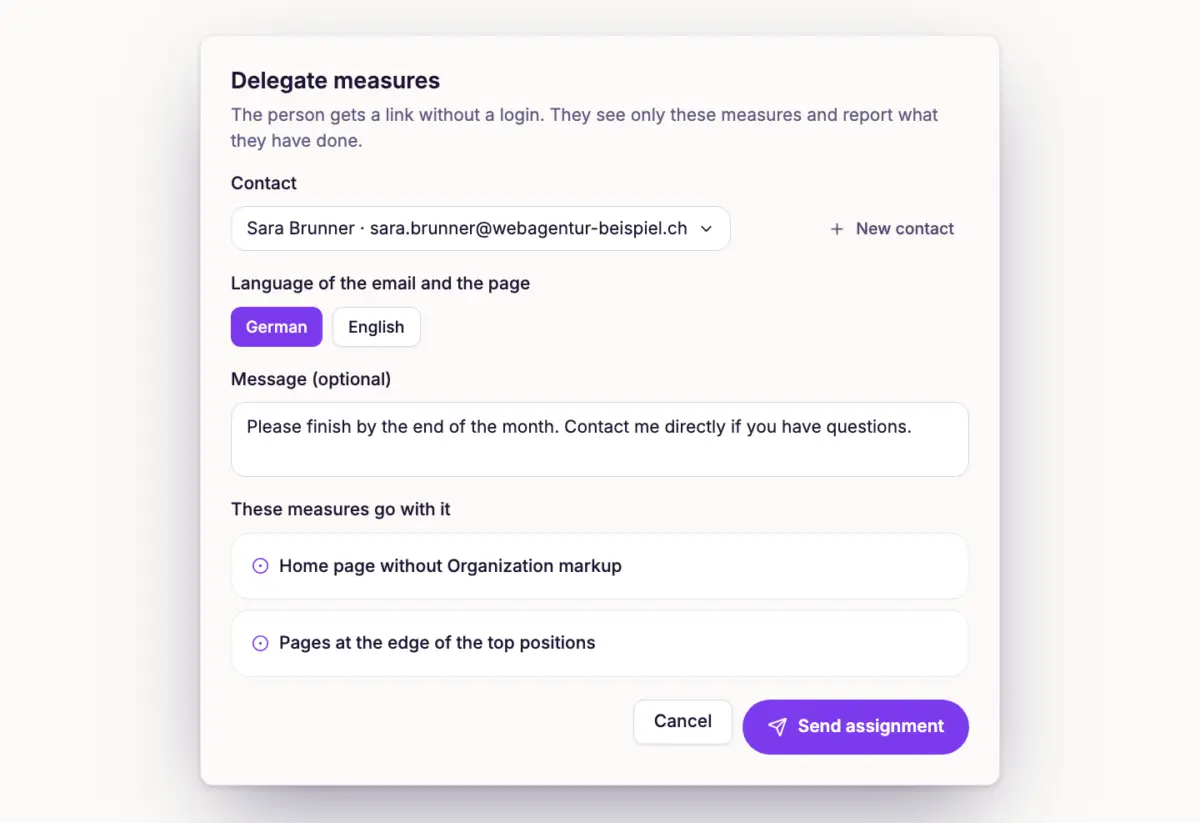
Under “Contact”, choose a person or add name and email with “New contact”.
Choose the language of the email and the page: German or English.
Add a message if needed. Check the selection under the list of included measures.
Click “Send assignment”.
The measure then shows who has it, for example “With Anna Meier since 12/10/2026”. A measure can only be in one active assignment at a time.
What the external person sees #
The person gets an email with a link. The page shows your message and every measure with its status and “What and why”. They do not see links into the app or Google Google Search Console (GSC) is a free Google tool that shows how a website performs in organic search, with data on impressions, clicks, click-through rate and average position, plus indexing and technical issues.Open glossary entry → figures.
In the “Your feedback” block the person can do two things:
- Report as done The measure gets the status “Reported as done”. RankScan checks it with the next scan. For some measures the person must enter the address of the new page.
- Send comment only The person asks a question or reports a problem without changing the status.
You get an email for every feedback. If you are no longer in the team, it goes to the account owner.
Manage assignments #
In “Measures”, open the assignments link, for example “Assignments (2)”. The list shows contact, date, deadline, the progress such as “1 of 3 reported” and the state “Active”, “Expired” or “Withdrawn” for each assignment.
- Withdraw The link stops working. The measures are free again.
- Resend The person gets a new email with a new link. The deadline starts again.
Below, you manage the contacts. You cannot delete a contact with an active assignment.
Important #
A link is valid for 90 days. After that it no longer opens, and you resend the assignment. The page only works while your account has an active plan.
Tip #
Send technical measures as one bundle to one person and content measures to another. Everyone gets only what they can implement, and the list shows at a glance where things are stuck.
Next step #
Prioritize and Work Through Measures shows how to choose and work through measures.