MCP (Model Context Protocol) is an open standard. It connects AI assistants with tools and data. RankScan offers an MCP server. With it, your AI assistant reads your RankScan data and answers questions about it, without you exporting tables.
MCP access is part of the Pro and Enterprise plans. On the Starter plan and during the trial, the server answers with 403. An admin changes the plan, see Manage Subscription and Billing.
What the assistant can read #
- properties, topics, A keyword is the search term users enter into a search engine to find information, products or providers. Keywords are the basis against which rankings and visibility are measured.Open glossary entry →, prompts and competitors
- the three scores per property and topic, also as daily history
- Google positions per keyword and day
- AI assistants' answers per prompt, whether your brand appears, Share of Voice in AI answers measures the proportion of mentions a brand receives within a prompt set compared to competitors. It indicates the competitive position in AI answers.Open glossary entry → and cited sources
- findings from Website Health
- scan status and usage against your plan
Access is read-only. The assistant cannot change anything. You keep maintaining topics, keywords and prompts in the app.
Step 1: Create a token #
An admin creates the token, just like for Looker Studio, see API Access and Looker Studio Connector.
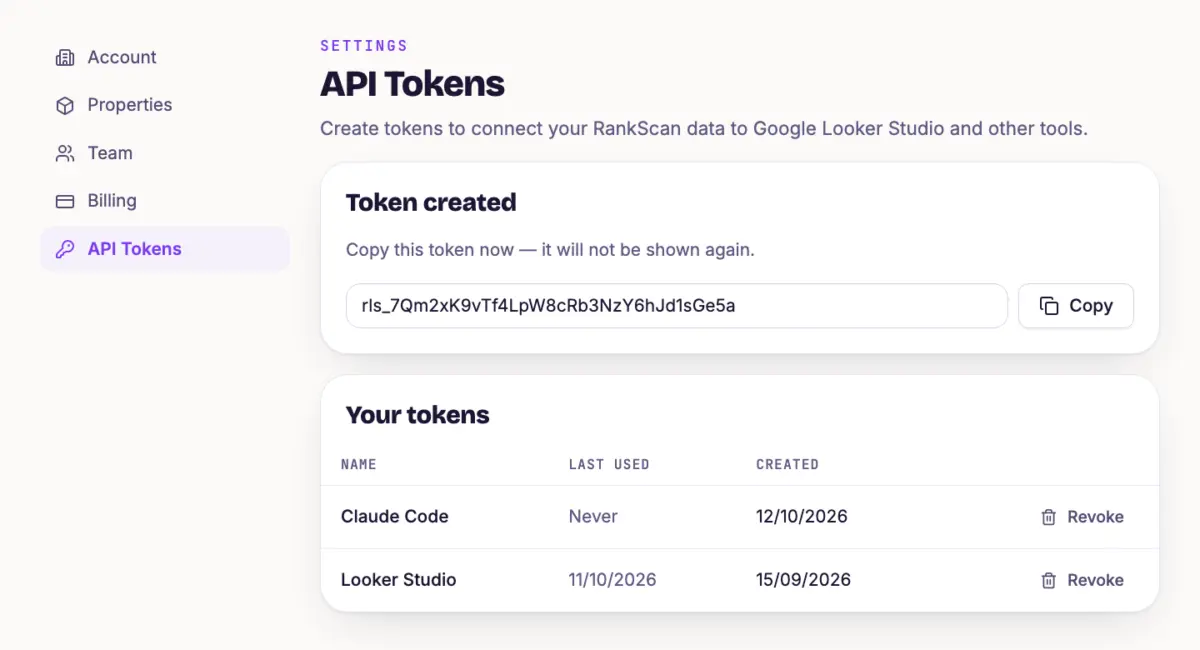
- Open the user menu at the top right, choose “Account” and then “An application programming interface (API) is an interface through which software systems communicate and exchange data. It defines how requests are made and answered.Open glossary entry → Tokens” on the left.
- Enter a “Token name”, for example “Claude Code”, and click “Create token”.
- Copy the token right away with “Copy”. RankScan shows it only once. It starts with
rls_.
Treat the token like a password. It sees all properties of your account.
Step 2: Add RankScan to your assistant #
The server is at https://app.rankscan.ai/mcp/rankscan. It expects the token in the Authorization: Bearer header and the HTTP (Hypertext Transfer Protocol) is the protocol through which browsers and servers exchange web content. HTTPS is the encrypted, secure variant of this protocol.Open glossary entry → transport.
In Claude Code, add it with this command in the terminal. Replace rls_… with your token:
claude mcp add --scope user --transport http rankscan https://app.rankscan.ai/mcp/rankscan --header "Authorization: Bearer rls_…"claude mcp list then shows whether the connection works. Other tools work if they allow MCP over HTTP with a custom header.
The connector settings of claude.ai and Claude Desktop do not work. They require a sign-in with OAuth, and the server does not offer it.
Step 3: Ask the first questions #
Start with “Which properties can I see in RankScan?”. Then, for example:
- “How has IT-Partner's AI Visibility describes whether and how visible a brand, website or person is in AI-generated answers. It measures mention, position, description and source linking across multiple platforms and prompts.Open glossary entry → in the Managed IT topic developed over the last 30 days?”
- “Which keywords in the Cloud migration topic dropped out of the top 10 this week?”
- “In which AI answers is Leitwerk IT named and IT-Partner is not?”
- “Which Website Health errors affect the most pages?”
If something does not work #
- 401 The token is wrong or revoked. Create a new token and add it again.
- 403 Your plan does not include MCP access, for example Starter or the trial. Or the account has no active plan. Check billing, see Manage Subscription and Billing.
- 429 More than 60 requests per minute. Wait one minute.
- The token is read-only You asked the assistant to change something. Make the change in the app.
Tip #
Create a separate token for the AI assistant, apart from Looker Studio. That way you can revoke it with “Revoke” without affecting your reports.
Next step #
For dashboards and reports with fixed figures, use the Reporting API, see API Access and Looker Studio Connector.