A keyword is the search term users enter into a search engine to find information, products or providers. Keywords are the basis against which rankings and visibility are measured.Open glossary entry → are the search terms for which RankScan measures your position on Google. Each keyword belongs to a topic. RankScan suggests the first set of keywords during setup. After that you maintain them yourself. Every team member can edit keywords.
Add keywords #
There are two ways:
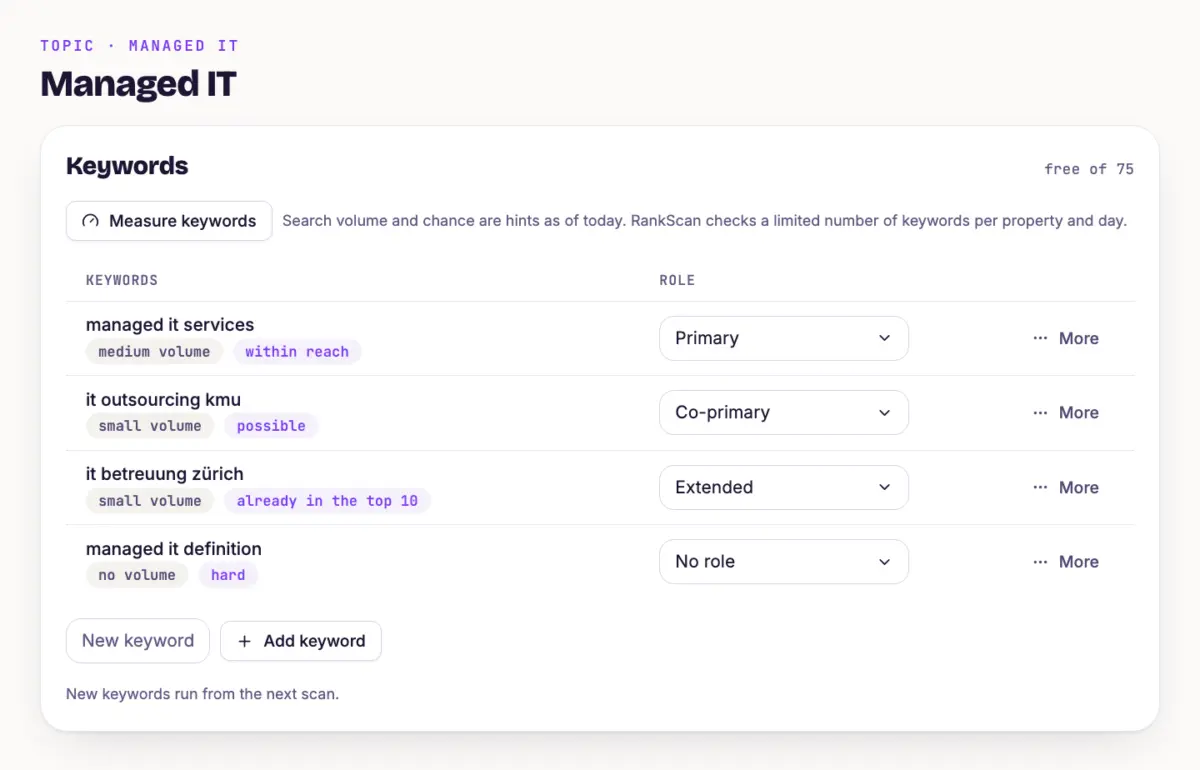
- In the topic Open “Settings”, the “Strategy” tab and the topic. In the “Keywords” card, enter a keyword under “New keyword” and click “Add keyword”.
- In the list Open “Search visibility describes how present and findable a website is in the organic search results. It is not the same as traffic, but reflects theoretical findability.Open glossary entry →” and the “Keywords” tab. Click “Add keyword”, choose the topic and enter the keywords, one per line. That way you add many at once.
New keywords run from the next scan. The number of active keywords applies to the whole account: Starter 25, Pro 75, Enterprise 250. RankScan does not count duplicate keywords.
Check potential with “Measure keywords” #
In the topic, click “Measure keywords”. RankScan then shows two hints per keyword:
- Search volume “no volume”, “small volume”, “medium volume” or “large volume”.
- Chance “already in the top 10”, “within reach”, “possible” or “hard”.
This does not start a scan and does not count against manual scans. RankScan measures up to 50 keywords per property and day. When the limit is reached, it says “daily limit reached”.
Role in the topic #
Under “Role” you classify each keyword: “Primary”, “Co-primary”, “Extended” or “No role”. That way you see at a glance which terms carry a topic. During setup RankScan presets the roles.
Switch off or delete keywords #
- Switch off RankScan no longer measures a switched-off keyword, the history stays. In the topic and in the list this is “Deactivate”. You switch it on again with “Activate” or “Reactivate”, as long as your quota allows.
- Delete In the topic via the “More” menu, in the list via the row menu. Deleting also removes the history.
Rather switch a keyword off if you might need it again later.
The list and the ranking detail #
Under “Search Visibility” → “Keywords” you see all keywords with position, change, ranking page and the topic page. The filters “Losses”, “Opportunities 11–20” and “Different page than chosen” show where to act. A click on a keyword opens the ranking detail with history, results list and your competitors.
Tip #
Check new keywords with “Measure keywords” first. A keyword with no search volume takes a place in your quota but brings hardly any visitors.
Next step #
Read Search Visibility and Opportunities shows how to read positions and find quick wins.