The “Pages” view shows every page RankScan has Crawling is the process by which a search engine bot fetches a URL and downloads its content. It is the first step before a page can be indexed.Open glossary entry → on your website. For each page you see which topic it stands for, what it ranks for on Google and how often AI assistants cite it. It also shows technical issues and open actions. Before the first crawl, the view says “No crawl yet”.
How to read the list #
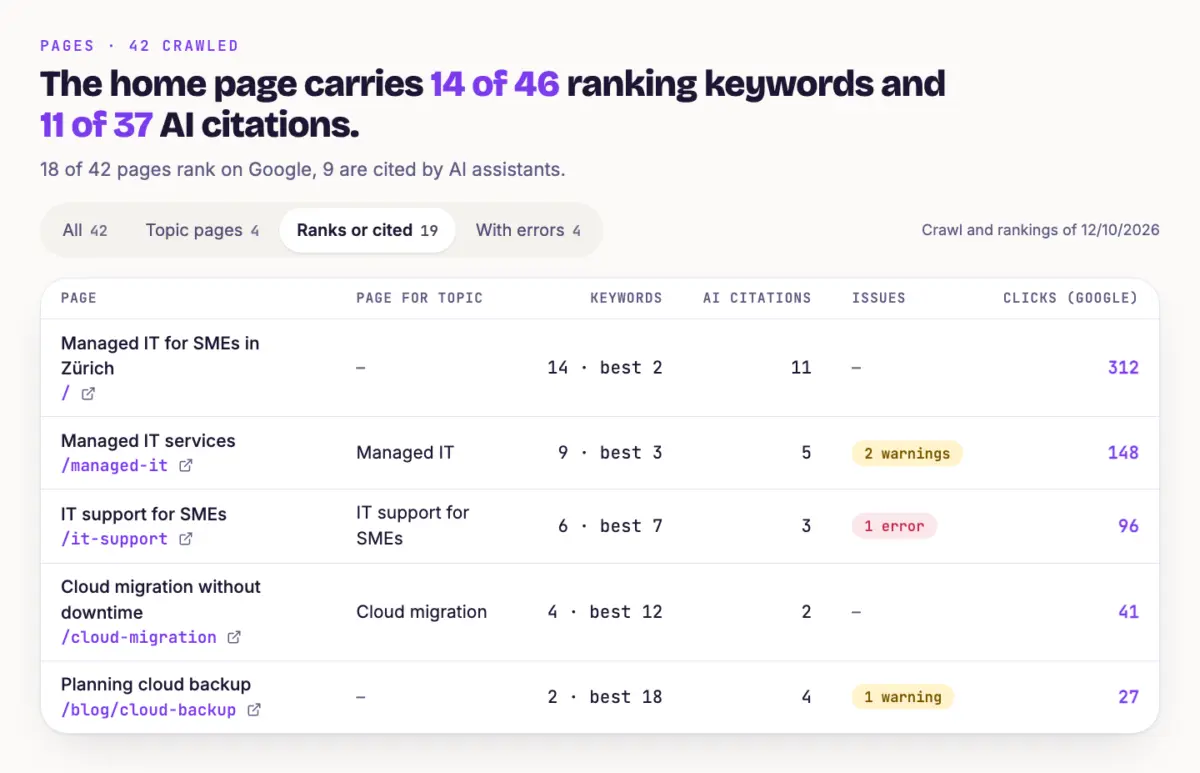
Open “Pages” in the menu. At the top, a sentence sums up which page carries the most. Below it you see how many pages rank on Google and how many AI assistants cite. On the right you see the date of the crawl, the rankings and the citations.
The table has these columns:
- Page Title and path. The icon next to it opens the page on your website.
- Page for topic The topic the page stands for. “(additional page)” means the page is an additional page of the topic.
- A keyword is the search term users enter into a search engine to find information, products or providers. Keywords are the basis against which rankings and visibility are measured.Open glossary entry → How many keywords rank with this page, and the best position.
- AI citations How often AI answers link to the page.
- Issues Errors in red, plus warnings. Notes do not count here.
- Actions How many open actions concern the page.
- Clicks (Google) Clicks from Google search. The column only appears with Google Search Console (GSC) is a free Google tool that shows how a website performs in organic search, with data on impressions, clicks, click-through rate and average position, plus indexing and technical issues.Open glossary entry → connected, see Connect Google Search Console. Click the number to open the page in Search Console.
Filters and order #
There are four filters above the table. Each shows how many pages it contains.
- All Every crawled page.
- Topic pages The pages of your topics. The home page is always included.
- Ranks or cited Pages with at least one keyword or one AI citation.
- With errors Pages with at least one error. Warnings do not count here.
The order is fixed: topic pages first, then pages that rank or are cited, then the rest. Within these groups, pages with the most keywords and citations come first. There is no search field. The list shows 25 pages at a time. Use “Next page” to go on.
The page detail #
Click a row. At the top, the detail sums up in one sentence what the page ranks for and how often AI cites it, for example for /managed-it. Five cards follow:
- The meta description is an HTML element in the page <head> that briefly summarises the page's content. Google can display it as the description in the search result.Open glossary entry → The text Google can show below the title. If it is missing, the card says “missing” and shows a “Go to action” link.
- Keywords ranking here Each keyword with its position.
- Prompts citing this page Which prompts led to an answer with a link to this page.
- Technical issues All findings of the last crawl, sorted by severity. “Go to action” leads to the matching task.
- Open actions for this page Up to ten actions that concern this page.
“All pages” takes you back to the list. The filter is then set to “All” again.
Tip #
Filter by “Ranks or cited” and look for pages with errors. An error on a page that ranks or is cited costs you more than one on a page nobody finds.
Next step #
Read Website Health and Fix Findings explains what the errors mean and how to fix them.