You find billing under “Account”. Only the account owner and admins see it. Members do not see this area. Payment runs through Stripe, a payment service for credit cards and other payment methods.
How to open billing #
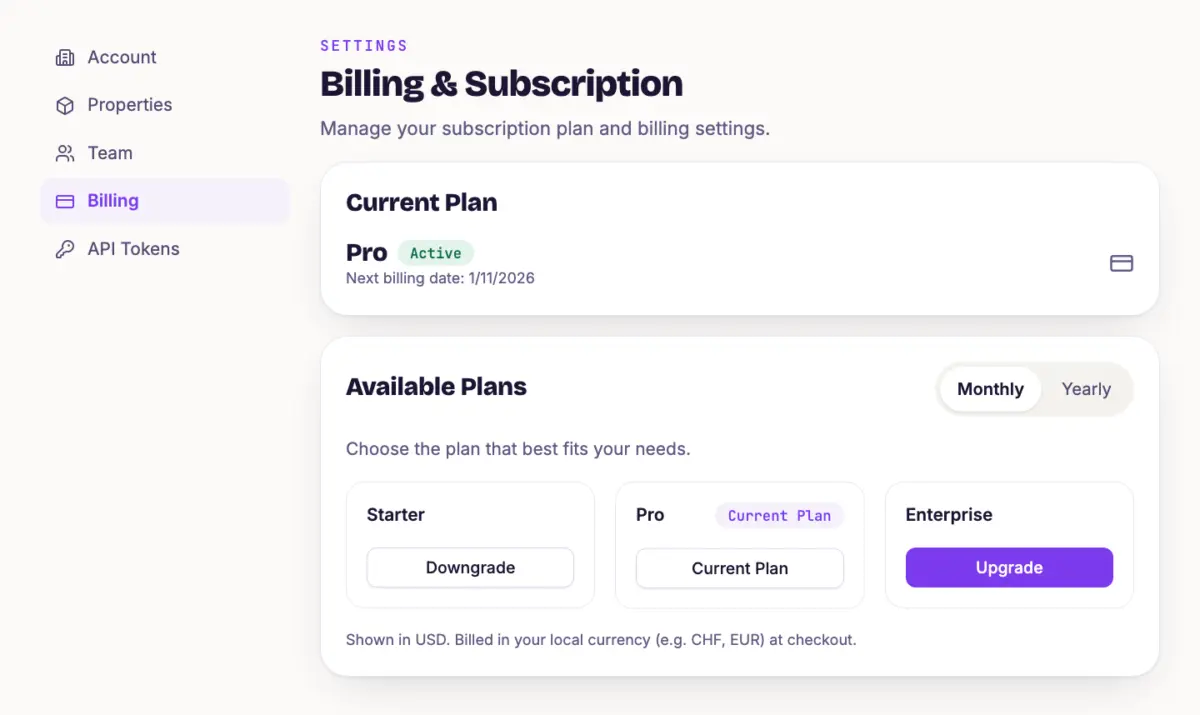
Open the user menu at the top right, choose “Account” and then “Billing” on the left. The page has up to four cards: “Current Plan”, “Available Plans”, “Manage Billing” and “Invoice History”.
During the trial, a banner shows how many days are left. “Upgrade now” also leads here.
Subscribe to a plan #
- At the top, choose “Monthly” or “Yearly”. For yearly billing, the app shows the price per month and the yearly amount.
- Click “Subscribe” on the plan you want.
- Enter your payment details at Stripe. You can also enter a promotion code there.
Prices are shown in USD. You are billed in your local currency at checkout, for example CHF or EUR. After that, the “Current Plan” card shows the status “Active” and the next billing date.
Change your plan #
Click “Upgrade” or “Downgrade” on the new plan. To switch between monthly and yearly, use “Switch to yearly billing” or “Switch to monthly billing”. RankScan then opens Stripe. There you see the change and confirm it.
If the new plan has fewer topics, RankScan deactivates the extra topics, newest first. Nothing is deleted, and the history is kept. You can then choose yourself which topics are measured, see Adjust Your Strategy Later.
Invoices and payment method #
- Invoice History The last twelve invoices with date, amount and status. You can download each one as a PDF.
- Manage Billing The card shows the saved card. “Open Billing Portal” opens Stripe. There you change the payment method and billing address and see all invoices.
Cancel and resume #
You cancel in the Stripe billing portal. Click “Open Billing Portal” and cancel there. The plan runs until the end of the paid period. The card then shows “Canceled” and “Your subscription will end on …” with the date.
Until that date you can undo the cancellation. Click “Resume Subscription”. The subscription then continues as normal.
If a payment is outstanding #
If a payment fails, the status shows “Past Due”. Instead of the plans, the page shows “Payment outstanding”. Settle the invoice with “Open Billing Portal”, usually with a new payment method. While the invoice is open, you cannot change your plan. RankScan stays usable during this time.
When the trial ends #
If the trial has expired and no plan is chosen, every page leads to billing. Your data is kept. As soon as you subscribe to a plan, you continue where you left off.
Tip #
Set your billing address in the billing portal before the first invoice is created. Then the PDFs in the invoice history are right for your accounting too.
Next step #
You decide in the team who is an admin and can see billing, see Manage Team and Roles.