Every topic has its own page. It shows how well you do on this subject with AI assistants, on Google and technically. And it shows why.
How to open a topic #
Open “Overview”. In the “Topics” table, click the name of a topic, for example “Managed IT”. The topic tables in “AI Visibility describes whether and how visible a brand, website or person is in AI-generated answers. It measures mention, position, description and source linking across multiple platforms and prompts.Open glossary entry →” and “Search visibility describes how present and findable a website is in the organic search results. It is not the same as traffic, but reflects theoretical findability.Open glossary entry →” also lead here. “Overview” at the top left takes you back.
The header #
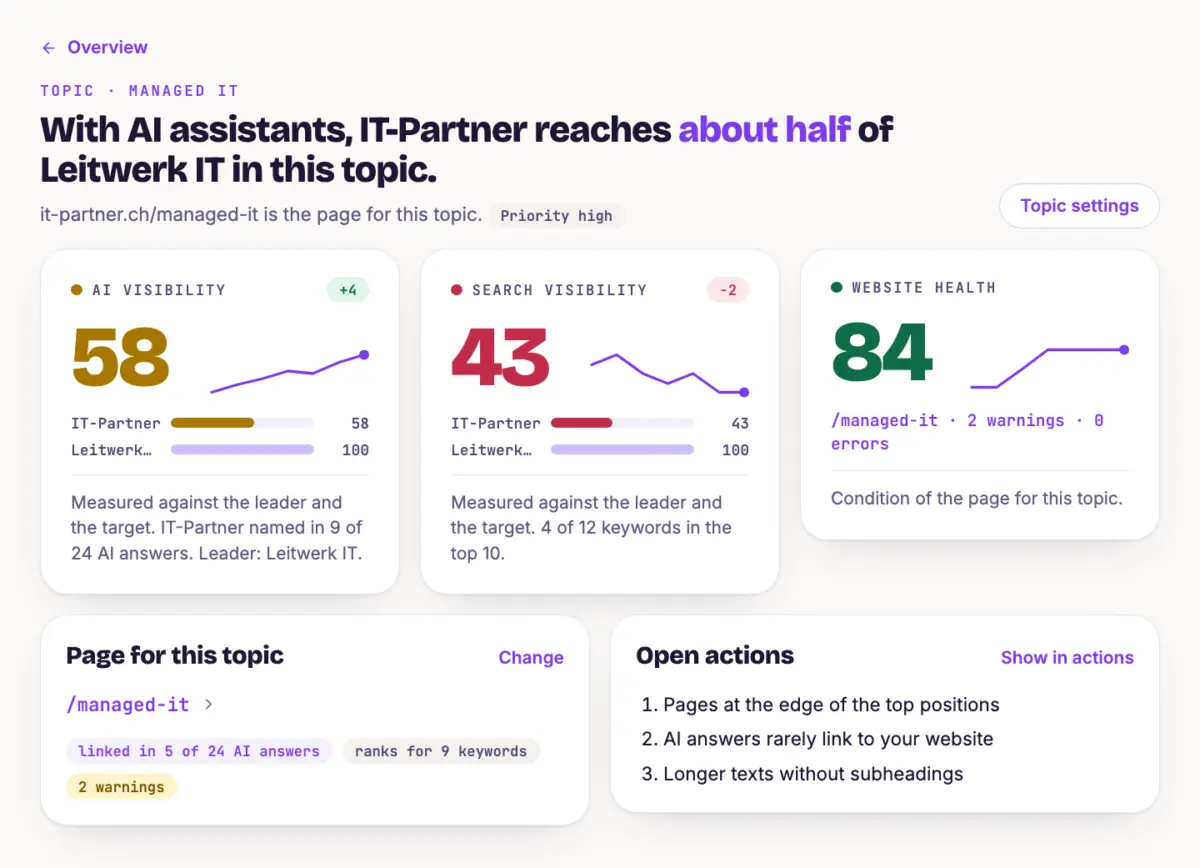
At the top, a sentence sums up the situation, for example whether IT-Partner is ahead of or behind Leitwerk IT with AI assistants. Below it you see which page stands for the topic and how often AI answers link to it. The chip shows the topic's priority. “Topic settings” opens name, page, A keyword is the search term users enter into a search engine to find information, products or providers. Keywords are the basis against which rankings and visibility are measured.Open glossary entry → and prompts.
The three score cards #
- AI Visibility How often AI assistants name your brand for the prompts of this topic.
- Search Visibility How well the keywords of this topic rank on Google.
- Website Health The technical state of the page for this topic: no finding 100, with warnings 70, with errors 0.
Each card shows a number from 0 to 100, your bar and the bar of the strongest competitor. It also shows the history and the change compared with an earlier day. AI Visibility and Search Visibility measure half against the strongest competitor and half against a fixed target. 100 means level with the strongest competitor and at the target.
If something is missing, the card tells you. “No prompts” means: without prompts, RankScan measures nothing with AI assistants. “No keywords” means the same for Google. “No page chosen” means: Website Health only counts once you choose a page. The card offers a button for this.
Page and actions #
- Page for this topic The page that should rank and be cited for the topic. Chips show how often AI links to it, how many keywords it ranks for and whether it has errors. “Change” chooses another page. If RankScan suggests several pages, choose one with “Choose page”.
- Open actions The three most important tasks for this topic. “Show in actions” opens all of them, filtered by the topic.
- Finish setup If the topic still lacks something, this says what to do, for example “Add keywords for “Managed IT””.
Keywords and prompts #
- Keywords Each keyword with position, change and ranking page. The “other page than chosen” chip is information, not an error. Just check whether the chosen page would be the better answer.
- Prompts Each prompt with the number of answers that name your brand. Next to it you see who is named most often. “not measured yet” and “paused” mark prompts without current values.
Both lists show ten entries first. “Show all …” expands the rest.
Pages and competitors #
- Ranking and cited pages All pages of your domain that rank for this topic or are linked in AI answers. Click a path to open the page detail, see Use the Pages View.
- Strongest competitors Who is named most often by AI assistants and who gets the most points on Google. Your brand is highlighted.
Tip #
Look at the weakest of the three cards first. If Search Visibility is far below AI Visibility, keywords are often missing or the page does not match the Search intent is the goal behind a search query: does the user want to learn something, buy something or reach a specific page? Content only ranks well if it matches this intent.Open glossary entry →.
Next step #
Maintain and Weight Keywords shows how to add and weight a topic's keywords.