A property's strategy consists of topics, A keyword is the search term users enter into a search engine to find information, products or providers. Keywords are the basis against which rankings and visibility are measured.Open glossary entry → and prompts. During setup it is created in the dialog, see Quickstart: Set Up in 10 Minutes. Later you adjust it in the same dialog. RankScan again suggests topics, keywords and prompts.
Start the dialog #
- Open “Settings” and the “Strategy” tab.
- In the “Strategy dialog” card, click “Start strategy dialog”. “Add topic” starts the same dialog.
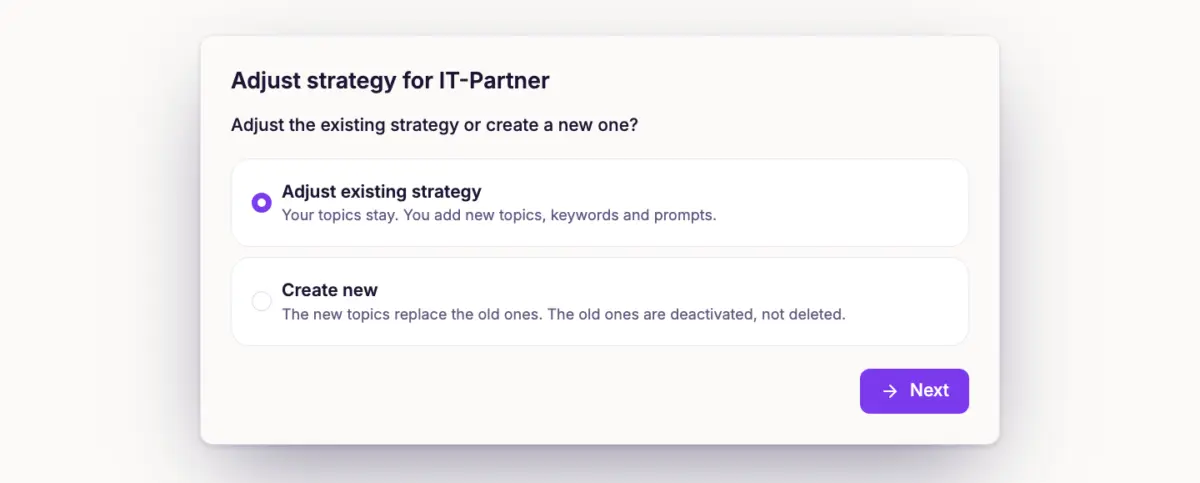
- Under “Adjust the existing strategy or create a new one?”, choose one of the two ways and click “Next”.
If an earlier dialog is still open, RankScan asks you. “Continue” takes it further, “Discard and start again” starts over. Once the analysis is running, the chosen way is fixed. The dialog takes URL, brand, region and language from the property.
Way 1: Adjust existing strategy #
Your topics stay. You add new topics, and new keywords and prompts to existing topics.
- The existing topics are listed under “These topics stay”. For them you can only add keywords and prompts.
- The dialog does not change the page, priority or Search intent is the goal behind a search query: does the user want to learn something, buy something or reach a specific page? Content only ranks well if it matches this intent.Open glossary entry → of existing topics. You do that in the topic settings.
- You can also finish without any new topics. Then you only add keywords and prompts.
- If you deactivated topics, keywords or prompts earlier and the dialog suggests them again, RankScan activates them again.
Choose this way if you have a new offer or a topic is missing keywords.
Way 2: Create new #
The new topics replace the old ones. RankScan deactivates the old topics with their keywords and prompts. Nothing is deleted, and the history is kept.
Before you finish, a warning appears. Tick “I understand”. Only then can you finish.
Choose this way if your offer has changed fundamentally or the old topics no longer fit.
Finish #
The overview at the end shows for each topic whether it “stays” or “will be deactivated”, and what is added. Click “Apply strategy”.
- As an admin If something has changed, RankScan starts the scans for search and AI answers right away.
- As a member RankScan saves the strategy. An admin starts the scans.
Every change to the keywords and prompts appears as a marker in the history. For seven days after a change to the prompts, the AI Visibility describes whether and how visible a brand, website or person is in AI-generated answers. It measures mention, position, description and source linking across multiple platforms and prompts.Open glossary entry → score mixes the old and the new set. A jump during these days is therefore not a measurement error.
Quota for the dialog #
Every topic the dialog works out for you uses one topic run. How many runs you have per month depends on your plan. The dialog shows how many are left. If the places for topics, keywords or prompts are full, the dialog names the limit. You can then deactivate keywords or prompts you no longer need, or go on with “Only extend existing topics”.
Pause a topic #
If you only want to stop measuring a topic for a while, you do not need the dialog. Open the topic, click “Topic settings” and switch off “Measure topic” under “Basics”. The topic then shows the “paused” chip. RankScan no longer asks the prompts of this topic. If you also want to stop measuring its keywords, switch them off, see Maintain and Weight Keywords.
Tip #
If in doubt, choose “Adjust existing strategy”. You keep your topics and their measurement series. A fresh start only pays off when more than half of the topics no longer fit.
Next step #
Define Topics That Produce Useful Insights shows how to define good topics.