Many websites keep important content in PDFs: a brochure, a factsheet, a course description, a banquet folder. Some of these PDFs find an audience. AI assistants cite them in their answers, and people click them in Google.
That is good news first. The PDF carries visibility. At the same time, the content sits in a file that is harder to maintain, link to and check than a page.
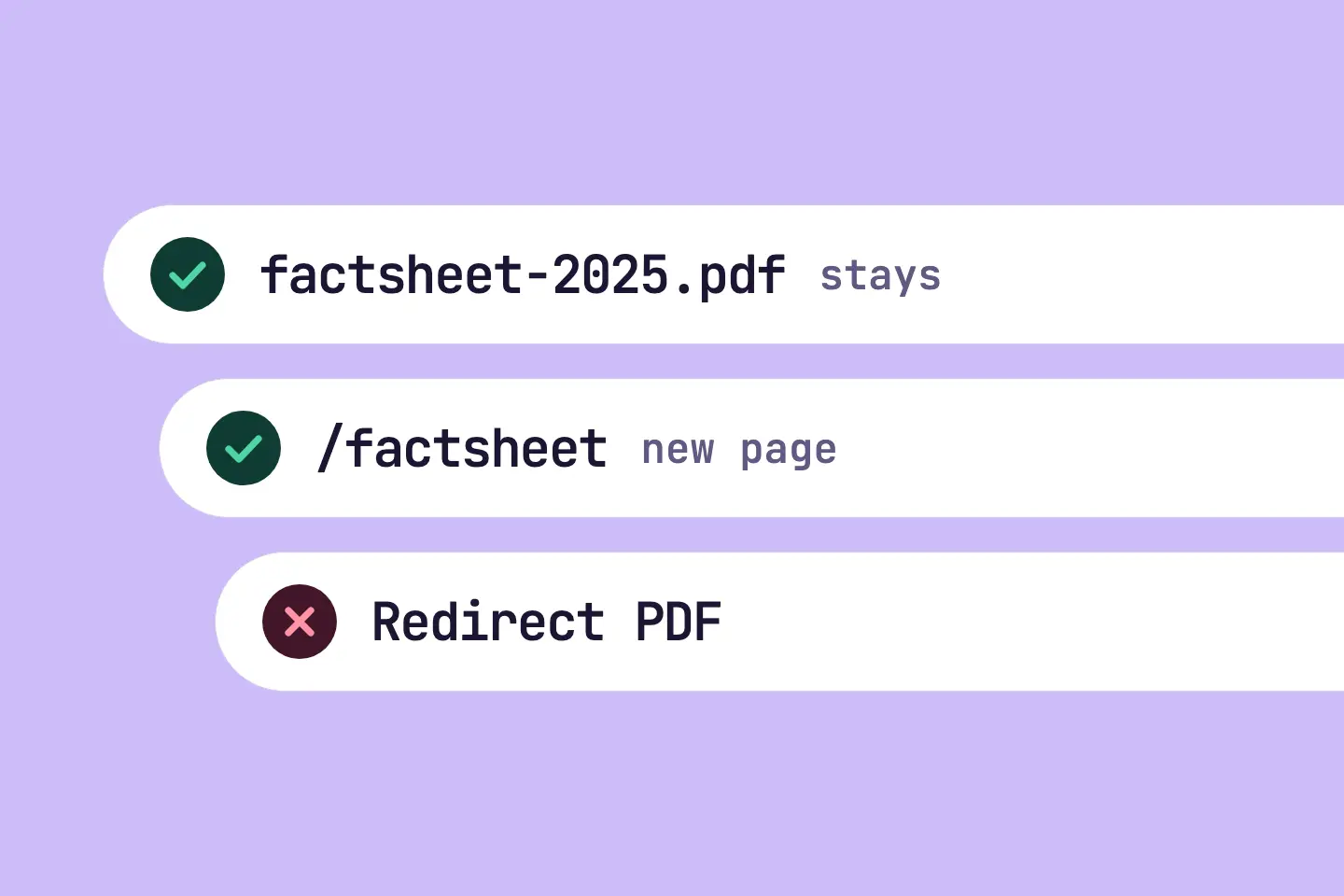
In RankScan, the matching task is called «Also publish the PDF content as a page». It appears when one of your own PDFs is cited or clicked. It advises you to also publish the content as a page. The PDF stays at its address.
Do not delete the PDF, do not A redirect forwards users and search engines from one URL to another. It can be permanent (301) or temporary (302) and transfers signals to the target URL.Open glossary entry → it and do not remove it from the Indexing is the step in which a search engine processes crawled content and decides whether a URL is added to the search index. Only indexed pages can appear in search results.Open glossary entry →. Removing a cited PDF can lower your visibility.
- The RankScan task «Also publish the PDF content as a page» appears for one of your own PDFs with at least 3 AI answers citing it or at least 10 clicks from Google in the last 30 days.
- Classification in RankScan: severity low · effort medium · work type editorial.
- At most three of these tasks are open per property at the same time.
- RankScan excludes legal documents such as terms and conditions, regulations or privacy policies by their file path.
- RankScan does not check the content of a PDF. RankScan also cannot see whether a page already carries the same content.
- If the PDF must stay a file, for example a form or a price list, you ignore the task with the reason «Not relevant for us».
- Otherwise you create a page with the core content: subheadings, a TL;DR stands for "Too Long; Didn't Read" and refers to a short summary at the start of a longer text that delivers the key message immediately.Open glossary entry →, facts as text.
- The PDF stays at its address. The new page links to the PDF.
- Proven: Google indexes PDFs. Not proven: whether the new page takes over the citations of the PDF.
- How it is checked: Report the task as done, then it counts as fixed. RankScan cannot see whether a page carries the content of the PDF.
Why a page next to the PDF? #
A PDF is not invisible. Google indexes PDFs and shows them in search results. AI assistants cite PDFs too, otherwise this task would not exist.
Still, a page next to it has some advantages.
- AI search cites HyperText Markup Language (HTML) is the markup language for web pages. It defines the structure and content of a page, such as headings, paragraphs, links and images.Open glossary entry → pages more often. A test by the vendor MaxAEO across 384 AI answers found 75 % of citations on HTML pages. The test comes from a vendor. Read the figure with caution.
- RankScan can check a page, not a PDF. Structure, subheadings, summary and Fact density describes how many concrete, verifiable pieces of information a text contains relative to general statements. It is an editorial quality criterion, not an official Google metric.Open glossary entry → of a PDF stay unmeasured. RankScan checks a page during the Crawling is the process by which a search engine bot fetches a URL and downloads its content. It is the first step before a page can be indexed.Open glossary entry → like any other page of your website.
- A page is easier to maintain and link to. You change a sentence directly in your A content management system (CMS) is software for creating, managing and publishing web content, usually without programming knowledge. Well-known examples are WordPress or Shopify.Open glossary entry →. Other pages link to a section instead of a whole file.
It is open whether all AI assistants fetch PDFs at all. The documentation of OpenAI and Perplexity says nothing about it. It is also open whether the new page takes over the citations of the PDF. So RankScan does not promise higher visibility.
That is why the task advises an addition, not a replacement. The PDF keeps what it carries today. The page joins it.
What does «Also publish the PDF content as a page» mean? #
Classification in RankScan: severity low · effort medium · work type editorial.
The task concerns exactly one PDF. Every PDF that meets the condition gets its own task. The title names the file, for example «Publish the content of factsheet-2025.pdf as a page».
When RankScan suggests the task #
A PDF counts if it is an address of your own property and its path ends in .pdf. RankScan suggests the task when one of two conditions applies:
- AI citations: At least 3 counted AI answers cite the PDF in the last 30 days. The PDF counts once per answer.
- Google clicks: The PDF gets at least 10 clicks from Google in the last 30 days. This figure comes from your connected Google Google Search Console (GSC) is a free Google tool that shows how a website performs in organic search, with data on impressions, clicks, click-through rate and average position, plus indexing and technical issues.Open glossary entry →.
The task names the figure that applies. If the PDF has citations and clicks, it names both values.
The number of citations can differ from the AI card. The task always counts the last 30 days.
At most three at a time #
At most three of these tasks are open per property. PDFs with the most citations come first, then those with the most clicks. When you complete or ignore a task, the next PDF moves up.
Legal documents are excluded #
Terms, regulations and similar documents must stay files. RankScan excludes them when their file path contains a typical word. Examples are AGB, AVB, Bedingungen, Reglement, Statuten, Datenschutz, privacy, terms, conditions, Vertrag or Police.
For this, RankScan only reads the file name and the path, not the content. A product sheet without such a word in its name can still appear. If it must stay a file, you ignore the task with the reason «Not relevant for us».
What RankScan cannot see #
RankScan does not check the content of a PDF. RankScan also cannot see whether a page already carries the same content. That is why the task starts with two checks that only you can do.
How it differs from «Wrong page ranks» #
There is a second case with PDFs. If a PDF ranks in Google outside the top 3 for a A keyword is the search term users enter into a search engine to find information, products or providers. Keywords are the basis against which rankings and visibility are measured.Open glossary entry → for which you chose a page, RankScan reports «Wrong page ranks» instead. That task advises you to strengthen the chosen page.
For the same PDF, only «Wrong page ranks» then applies. RankScan closes an open task «Also publish the PDF content as a page» for that PDF as «replaced». The steps there differ from the steps here. Read more in the article on Wrong page ranks.
How to carry out the task #
Step 1: Check whether the PDF must stay a file #
Open the PDF and ask yourself: must this document exist as a file? That is often true for:
- terms and regulations that apply as a whole,
- forms that people print or fill in,
- price lists that apply as of a date.
Step 2: Ignore the task if the PDF must stay a file #
If step 1 applies, ignore the task in RankScan with the reason «Not relevant for us». The other steps do not apply. The next PDF can move up.
Step 3: Check whether a page already carries the content #
Search your website for a page with the same content. Often there is an offer page whose content the PDF only sums up.
If such a page exists, link the PDF from that page. While you are there, check whether the page also contains the key facts of the PDF as text. Then continue with step 7.
Step 4: Create a page with the core content #
If no such page exists, create a new page. It carries the core content of the PDF, not necessarily every word. Pay attention to three things:
- Subheadings: Divide the content into sections with clear subheadings. A subheading says what the section is about.
- Short summary: Put two or three sentences at the top that say what matters most. Whoever reads only the start knows the essentials.
- Facts as text: Write figures, dimensions, dates and prices as text on the page. Set a table as a real table, not as an image.
A few general tips help as well. Give the page a title that names the topic of the PDF. Only carry over images that show something, and give them an Alt text is a text alternative for an image, stored in the alt attribute of the img element, describing the content or function of the image.Open glossary entry →. Read more about facts as text in the article on fact density.
Step 5: Keep the PDF and link it from the page #
Keep the PDF at its current address. Change neither the file name nor the folder. Link the PDF from the new page, for example with «Download the factsheet as PDF».
This keeps everything the PDF carries today: citations, clicks and links from other websites. Whoever needs the PDF still finds it.
Step 6: Link the new page #
Link the new page from a matching page on your website. That can be the offer page, an overview page or the navigation.
Without a link, hardly anyone finds the page. With a link, the RankScan crawler finds it too and checks it during the next full crawl like any other page.
Step 7: Report the task as done #
Report the task as done in RankScan.
How it is checked: The report closes the task as fixed. RankScan cannot see whether a page carries the content of the PDF, so it does not check this. The report frees one of the three places.
If the PDF is neither cited nor clicked for 30 days, RankScan closes an open task as «replaced». That says nothing about your page. The PDF simply no longer carries any measurable demand.
Common mistakes #
Mistake 1: Deleting or redirecting the PDF #
This is the most costly mistake. The PDF is cited or clicked today. If you delete it, you lose this visibility, and it is not proven that the new page takes it over. The same applies to a redirect or a «noindex is a robots directive telling search engines that a page should not appear in search results. The page must remain crawlable for it to work.Open glossary entry →» on the PDF.
Mistake 2: Renaming or moving the PDF #
A new file name is a new address. Citations and links to the old address then lead nowhere. Leave the PDF where it is.
Mistake 3: Only embedding the PDF #
A page that only shows the PDF in a frame does not carry the content as text. Write the core content on the page itself.
Mistake 4: Not linking the page #
A page without a link from your website is hard to find. Link it from a matching page.
Mistake 5: Letting page and PDF drift apart #
If you change the PDF later, change the page too. Otherwise your website shows two different statements on the same topic.
Checklist: PDF content as a page #
- checked whether the PDF must stay a file, otherwise ignored the task with «Not relevant for us»,
- checked whether a page already carries the same content, and linked the PDF from there,
- otherwise created a new page with the core content: subheadings, a short summary, facts as text,
- kept the PDF at its address, not deleted, not redirected, not renamed,
- linked the PDF from the new page,
- linked the new page from a matching page of the website,
- reported the task as done in RankScan.
FAQ About PDF content as a page #
Should I delete the PDF afterwards?
No. The task explicitly advises you to keep the PDF at its address. The PDF is cited or clicked today. It is not proven that the new page takes over these citations.
Does RankScan detect my new page?
RankScan checks the new page during the crawl like any other page, as long as it is linked. But RankScan cannot see that it carries the content of the PDF. So report the task as done yourself.
Why does a product sheet appear although it must stay a file?
RankScan excludes legal documents only by words in the file path. RankScan does not read the content of the PDF. Ignore the task with the reason «Not relevant for us», and the next PDF moves up.
Why do I see no task although a PDF is cited?
There are several possible reasons. The PDF is below the thresholds of 3 answers or 10 clicks in 30 days. Its file path contains a word for legal documents. It ranks outside the top 3 instead of a chosen page, and then «Wrong page ranks» applies. Or three other PDFs currently take up the three places.
Does the page raise my AI Visibility?
That is not proven. A vendor test found most AI citations on HTML pages, but that proves no effect for your page. What is certain: RankScan can check a page, not a PDF.
Conclusion: an addition, not a replacement #
A PDF that is cited or clicked is a gain. The task does not want to put this gain at risk. It advises a page next to the PDF: with subheadings, a short summary and facts as text. The PDF stays where it is. Whether the page brings more citations is open. What is certain is that you maintain the content more easily afterwards and RankScan can check it.
Sources and further reading #
- Source: Google Search Central: File types indexable by Google
- Source, read with caution: MaxAEO: Can AI cite PDFs and videos? (vendor test, 384 answers)